
Fitness Tracker Manual
User Manual
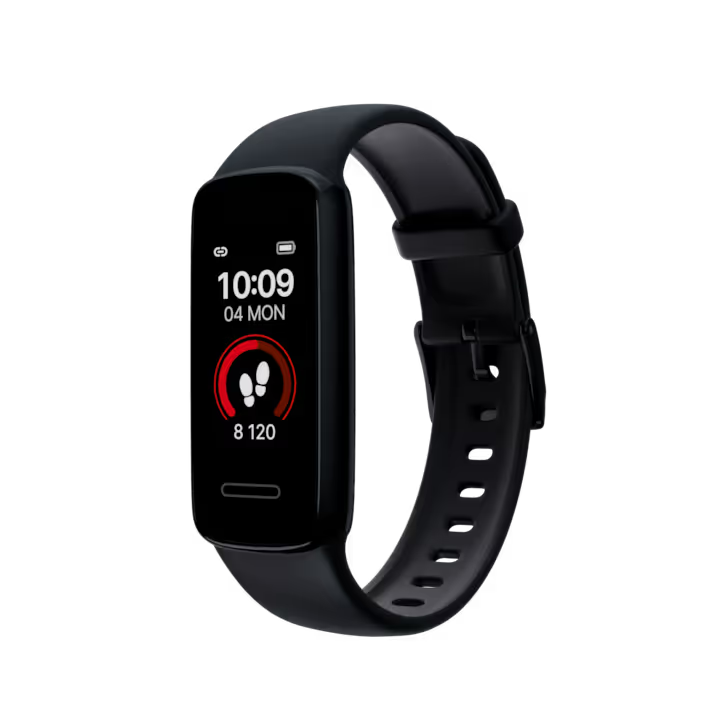
Scroll to start
Table of Contents
Tap on the chapter you’re interested in to quickly see it or just scroll down to see the whole guide
01. Device Parameters
Operation: Touch, swipe, and raise wrist to wake the display
Charging method: Magnetic charging cable (included)
Battery type: Polymer lithium-ion battery
Data transfer: Bluetooth 5.1
Device requirements: Android 10.0 or later; iOS 16.0 or later

02. Wearing
Wear the fitness tracker on your wrist and fasten the strap so that it fits snugly, about one finger’s width above your wrist bone.

03. Strap replacement
To release the strap, press and hold the button on the back of the fitness tracker. While holding the button, gently pull the strap away from the tracker.
To attach the strap, align it with the connector and press it into place until you hear a click.


04. Connecting
- Press and hold the touch button to turn the fitness tracker on.
- When the fitness tracker vibrates, it has turned on.
- If the fitness tracker does not turn on, it may need to be charged.
See the Charging section for details.

- Download the BetterMe app by scanning the QR code on the box.
- Create an account or log in to your existing account.
- In the BetterMe app, go to More → BetterMe Fitness Tracker and follow the on-screen instructions to connect.



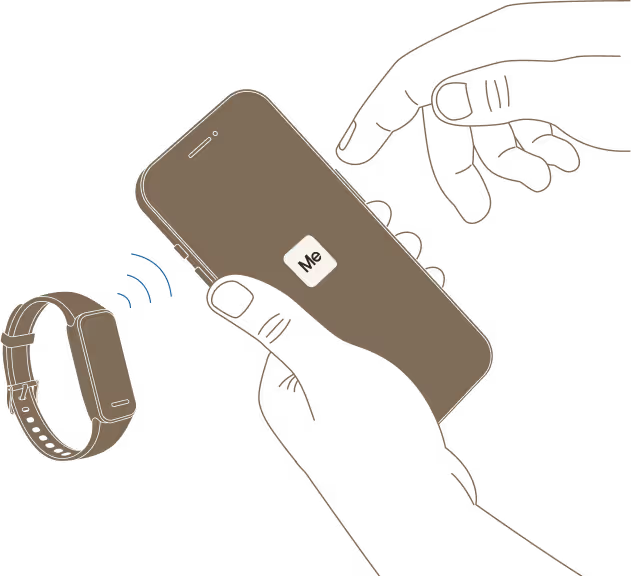
When the BetterMe app detects the fitness tracker and starts connecting, confirm the connection on the tracker screen. Make sure the fitness tracker is close to your phone during pairing.

05. Usage
After pairing, the fitness tracker starts tracking your daily activity, including steps, sleep, and heart rate. Tap the touch button or raise your wrist to wake the fitness tracker.

Swipe left or right

Tap the touch button

Press and hold the home screen
06. Main Functions

See your step analytics in the BetterMe app and your daily steps right on your fitness tracker.

The fitness tracker automatically monitors your sleep at night and calculates your sleep score.
Sleep tracking is based on your movement. The data is provided for reference only and may not always be accurate. Periods of little or no movement while awake may be recorded as sleep. Sleep tracking is not supported for irregular sleep patterns, such as night shifts.

Swipe to the Heart Rate screen to view your real-time heart rate data.

Heart Rate Variability measures your heart rate variability and can be one of the indicators of how well your body is adapting to stress and recovering.

The fitness tracker vibrates softly on your wrist when you receive a message. The screen lights up to display the message notification.
Tap the right chevron icon on the Settings screen to see additional features of the fitness tracker.

See the main info about your tracker: the device’s MAC address and firmware version.
1. Swipe left or right on the touch screen until you see the Reset Band option, then tap the right chevron icon.
2. Tap the red button to start the reset process.

1. Swipe the touch screen left or right until you see the Power Off option, then tap the right chevron icon.
2. Tap the red circular button to power off.
07. Progress
Track daily statistics on the go. Swipe the main menu on your tracker to see the daily metrics.

Find your weekly progress in the BetterMe app.
- In the BetterMe app, go to More → BetterMe Fitness Tracker to view your daily activity data.
- To see detailed statistics, tap the Steps, Sleep or Heart Rate section. You can also scroll down and tap See All Progress to access additional statistics.
Update the fitness tracker statistics by pulling down to refresh until you see the loading icon.
Connect to the Health app (iOS) or Health Connect (Android) in the Progress section to display additional data in your statistics and get a more complete picture of your fitness.


To remove health data, collected by your BetterMe Fitness Tracker, follow the instructions:
- Open the BetterMe app.
- Tap the More tab at the bottom of the screen.
- Tap the Profile icon (or the icon with the initial letter of your name) in the top-right corner.
- Scroll down to the Legal & Privacy section and tap Manage Personal Data.
- Tap Stop Sharing Fitness Tracker Data.
If your BetterMe Fitness Tracker is synced with the app during this process, the device will reset, and all data stored on it will be permanently erased.
Additionally, any data previously transferred from the BetterMe Fitness Tracker to the BetterMe app will be deleted from your account and cannot be restored.
08. Charging
- Remove the fitness tracker from your wrist.
- Plug the charging cable into a USB-C power source, such as a computer, wall charger, or power bank.
- Align the charging cable with the golden pins on the back of the BetterMe Fitness Tracker, and the cable will attach magnetically.
- When the fitness tracker vibrates gently and displays the charging indicator, you'll know it's charging.


09. Charging cable
Where to find the charging cable?
The charging cable is included in the box. To find it:
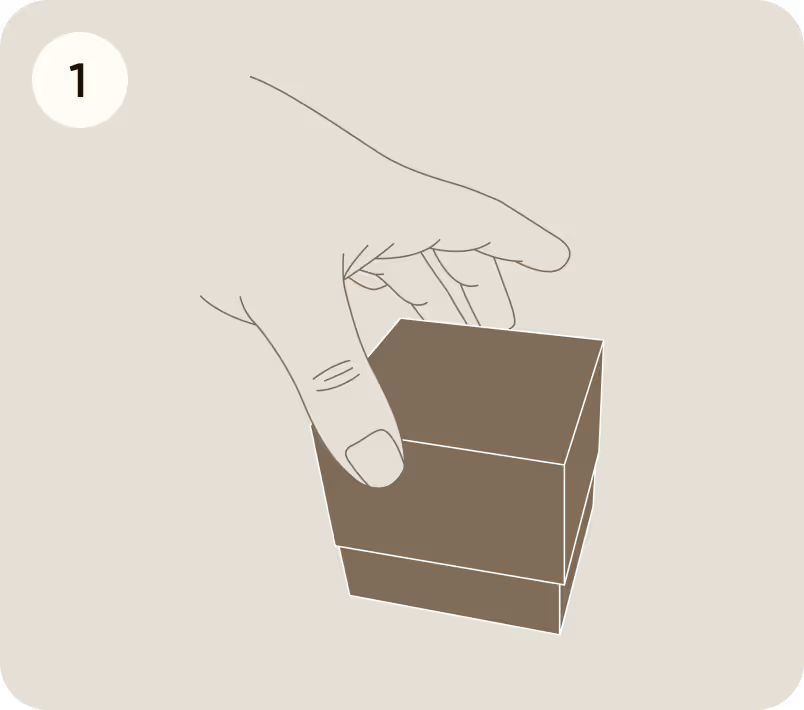
Open the box and remove the top cover
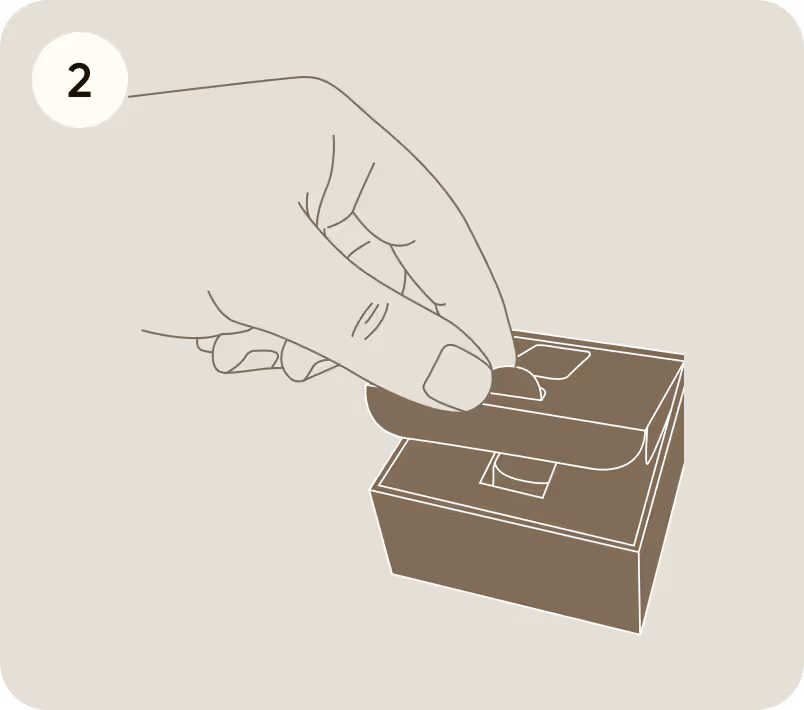
Take out the cardboard insert
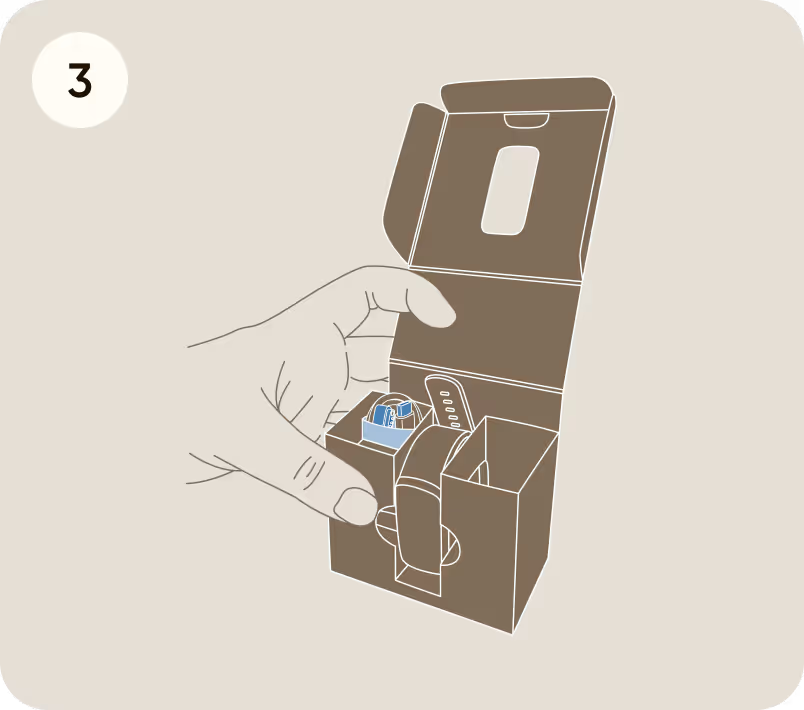
Find the cable in the side compartment
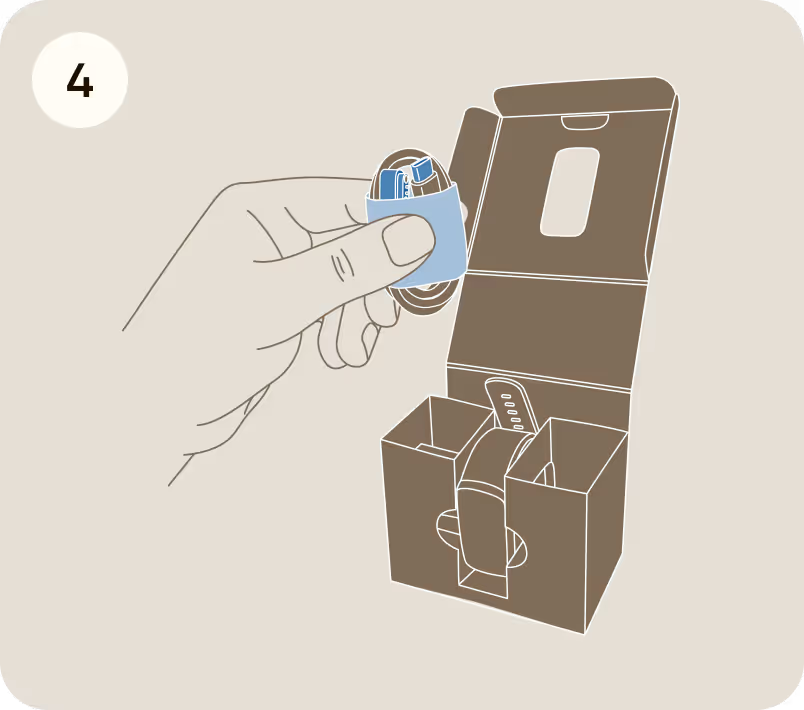
Remove the cable from the compartment
Lost or damaged charging cable
If your charging cable is lost or damaged, you can purchase a replacement from the BetterMe Store.
USB-C power sources
The charging cable can be connected to a USB-C power source, such as:
- USB-C wall charger
- Computer or laptop
- Power bank

Using third-party charging cables
We recommend using the charging cable included in the box or an official replacement.
Charging cables from other manufacturers may not be compatible and could result in unstable charging or device damage.
10. Precautions
1. Water resistance
The BetterMe Fitness Tracker is rated IP68, which means it is splash-resistant and can withstand submersion in freshwater up to 1.5 meters for up to 30 minutes.
We do not recommend using the fitness tracker in saltwater or chlorinated water.
Do not use the fitness tracker while taking hot showers or baths, in saunas, during diving or surfing, while swimming in pools, or during activities involving high temperatures or high moisture. After exposure to water, rinse the fitness tracker with fresh water and dry it thoroughly.
2. Strap handling
Remove the strap gently. Avoid bending or twisting the strap excessively to prevent damaging the strap or its connector. Handle the strap with care to maintain its fit and durability.
11. What comes in the box
Your BetterMe Fitness Tracker box contains:
- BetterMe Fitness Tracker (with strap)
- Charging cable
- BetterMe Fitness Tracker Guide
- BetterMe Legal Guidelines
